Intact License Manager User Manual
Overview
Intact License Manager provides a GUI and a command line interface to manage licenses, activate machines, and deactivate machines.
Installation
Intact License Manager can be installed using the standard dnf package manager:
dnf install "Intact License Manager.rpm"
which installs a GUI and command line interface into /opt/Intact License Manager.
Install by running the Intact License Manager installer.
Graphical user interface
Intact License Manager provides a graphical user interface for specifying license keys and activating machines. To specify a license key, first open the Intact License Manager.
Enter the license key you should have received via email:

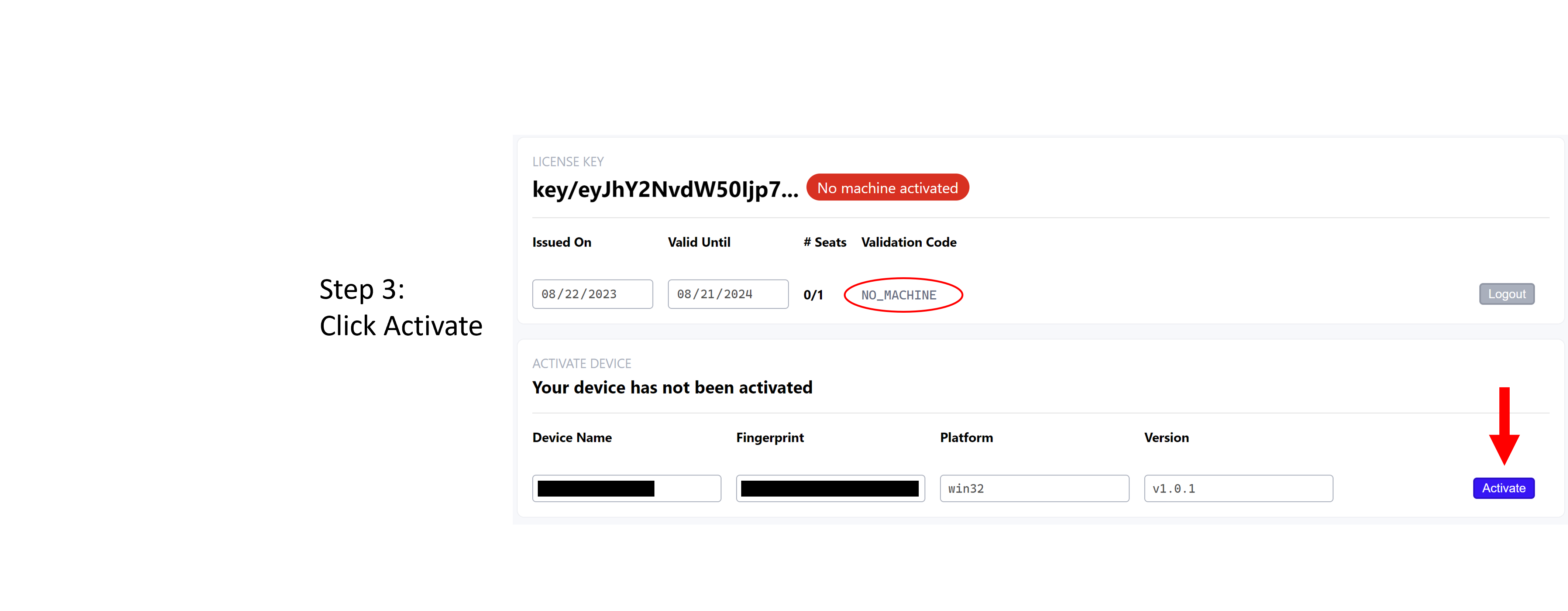
This will then open a page showing the information for your device and license in addition to an activate button, click this button to activate the license.
Upon successful activation, you should see this screen.
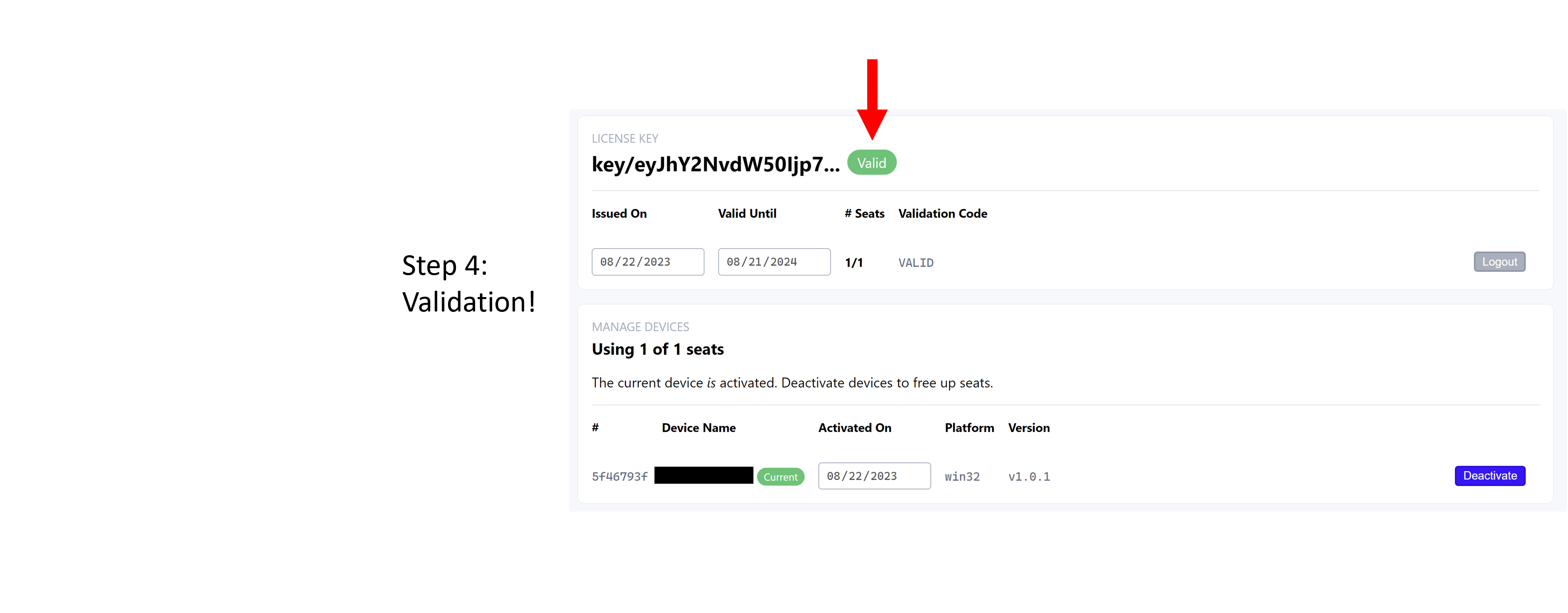
You have now activated the license for your Intact.Simulation product.
Command line interface
The command line interface, intact_license_manager_cli has the
following help output:
$ ./intact_license_manager_cli --help
Usage: intact_license_manager_cli [options]

Options:
  --license-key <key>  The license key
  --checkout           Check out a license for the current machine
  --checkin            Check in the license for the current machine
  --seats-available    Print the number of available seats to stdout
  -h, --help           display help for command
It requires a --license-key <key> argument to specify which
license key is being managed. It also requires either a --checkout
argument to specify that you want to acquire a license for the current
machine or a --checkin argument to return the license that is
currently being used by the current machine so it is available to be
used by another computer.
Exit status
The intact_license_manager_cli utility exits 0 on success, or
exits >0 if an error occurs. A brief human readable message starting
with [FATAL] and the complete error text will be printed to
stderr if an error occurs. The following exit statuses have the
following meaning:
20 LICENSE_NOT_FOUND_ERROR - The license corresponding to the provided license key could not be found.
    Verify that the license key is correct.
21 MACHINE_FINGERPRINT_ERROR - The utility was unable to generate a unique machine identifier.
22 LICENSE_VALIDATION_ERROR - Generic error that the license status could not be determined
    (that the utility could not determine if the license is expired, suspended, etc.).
23 MACHINE_LIMIT_EXCEEDED_ERROR - This license is checked out on more machines than the maximum number allowed for license.
    Check in this license on a machine where it is checked out or use a different license key to use a different license.
24 MACHINE_ACTIVATION_ERROR - Generic error that the current machine could not be activated.
25 MACHINE_DEACTIVATION_ERROR - Generic error that the current machine could not be de-activated.
26 MACHINE_CHECKOUT_ERROR - Generic error that the license could not be checked out for the current machine.
27 WRITE_LICENSE_ERROR - The license files were not able to be written to disk.
28 LICENSE_EXPIRED_ERROR - The license has expired. Contact Intact Solutions to purchase a new license.
29 MACHINE_LIST_ERROR - Unable to determine how many machines are currently using license.
Offline licenses
Intact License Manager can be used to generate licenses for computers that are offline or in an air-gapped environment.
Start Intact License Manager on a computer connected to the internet. This computer must be able to communicate with https://api.keygen.sh, the licensing service used by Intact.Simulation.
Enter the license key.
On the ensuing screen, look for the “Activate device” section:
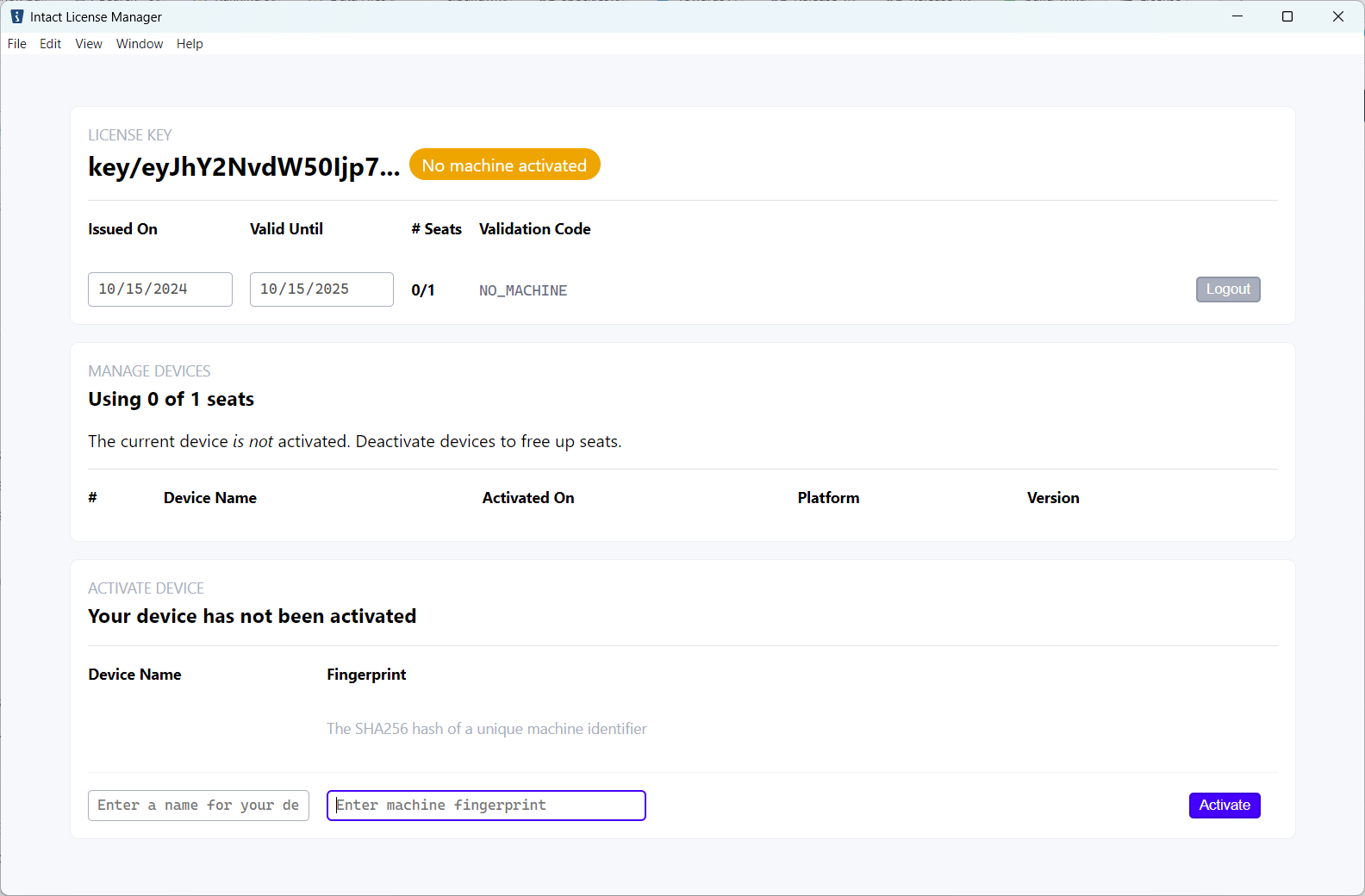
By default, the current computer’s name and unique identifier are used. To activate an offline computer, replace the “Device Name” with the name of the offline computer, and replace the “Fingerprint” with the SHA256 hash of the computer’s unique machine identifer.
Click the “Activate” button. This will generate two files named
license.licandlicense_key.licin the user’s configuration directory.Linux
The configuration directory is
$HOME/.config/intact_simulation/.Windows
The configuration directory is
$env:APPDATA\intact_simulation(i.e.C:\Users\username\AppData\Roaming\intact_simulation).
Copy those files to the configuration directory on the offline computer.
The offline computer should now be able to run Intact.Simulation.
How to generate the SHA256 hash
Linux
The machine identifier can be found, on most systems, in the file
/var/lib/dbus/machine-id. Calculate the SHA256 has with:
echo -n foobar | sha256sum
Windows
The machine identifier is found in the registry key
HKEY_LOCAL_MACHINE\SOFTWARE\Microsoft\Cryptography in the value
MachineGuid. Calculate the SHA256 hash following the example:
$stringAsStream = [System.IO.MemoryStream]::new()
$writer = [System.IO.StreamWriter]::new($stringAsStream)

$writer.write(<<MachineGuid goes here>>)

$writer.Flush()
$stringAsStream.Position = 0
Get-FileHash -InputStream $stringAsStream | Select-Object Hash
Website to manage licenses
You can also manage licenses on accounts.intact-solutions.com.
Quick start
Register using the same email address used for your purchase.
Confirm your account. You will receive a confirmation email after registering your account.
Log in with your account credentials.
- Manage your license anytime:
View license details, usage, status, and expiry date
Deactivate a device if you are moving to a new device
Download the license key if you have misplaced it or for installation on another machine